MX Player
- 4.2
- Rating
- 1.00B
- Installs
- Free
- Price

 Analysis by App-foxy
Watching a video on a phone sounds simple until the player struggles with an unusual file, loses subtitle timing, or turns a small screen into a maze of controls. After spending time with MX Player, I found that its appeal is less about decoration and more about giving me control over how video behaves on Android. It is a free video player and editor-category app from Amazon Mobile LLC, with a 4.2 average from around 14 million ratings and over one billion installs. Those figures make sense once you start testing it with different kinds of clips rather than only the short videos that most phones handle easily.
The app is available to Everyone, runs on Android 7.0 and later, and its current version is 2.9.0. That broad device reach matters because a player like this is often installed on an older phone, a budget tablet, or a secondary device used for travel. I would not describe it as the simplest possible player, but I would recommend it to anyone who wants more say over subtitles, playback speed, screen behavior, and hardware acceleration than a basic gallery app normally offers.
Where MX Player feels strongest when connectivity changes
When my connection changes, I find it helps to separate playback problems from source problems before making adjustments. I use MX Player’s controls to manage the video once it is available, but I treat buffering as a cue to pause and reconsider the source rather than repeatedly tapping through settings. That distinction keeps troubleshooting focused and leads naturally to the question of what happens when the source itself hands off to another app.
In-Depth Coverage of MX Player
Network-dependent moments are mostly about discovery and interruptions
The first thing I noticed is that the quality of the viewing experience is not determined only by the video file. Connectivity changes how convenient the whole process feels. When I am browsing for something to watch, moving between content sources, or dealing with a video experience that depends on a connection, a weak network makes every delay more noticeable. MX Player itself is most valuable at the playback stage, where the controls and decoding behavior matter after the video is available to play.
That distinction is important. I would not choose this app because I expect it to solve every problem caused by an unstable connection. A sophisticated player can make playback more comfortable, but it cannot turn a poor network into a reliable one. When a video pauses because the source is slow, the useful question is whether the player gives me enough control to recover gracefully. In my experience, MX Player feels better suited to that situation than a very stripped-down player because it exposes more playback adjustments instead of forcing me to accept one fixed presentation.
Subtitles are a good example. In a quiet room, slightly late dialogue is irritating; on a train or in a noisy café, it can make a video difficult to follow. MX Player’s subtitle support is one of its practical strengths, especially when I need to adjust the viewing experience rather than simply press play. The app is not just presenting an image with sound. It gives me a more deliberate way to make a difficult video watchable.
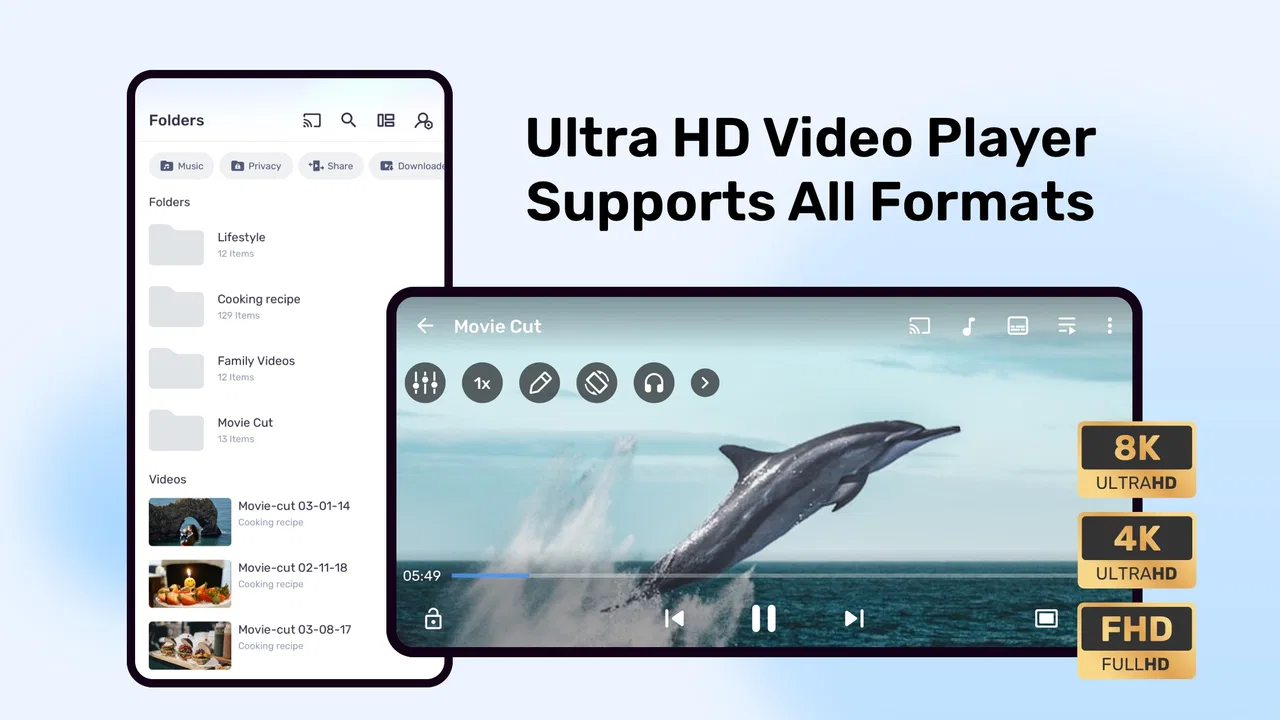
There is also a trade-off. More controls mean more opportunities to change something accidentally. A first-time user may see gestures, playback options, and subtitle controls as clutter instead of freedom. I recommend spending a few minutes learning the controls before using the app in a rushed situation. That small investment pays off when a video starts behaving badly and I do not have to search blindly for the right setting.
Why hardware acceleration matters on a phone
The store summary highlights advanced hardware acceleration, and this is more meaningful than it may sound. Video decoding can place a noticeable burden on a mobile device, particularly when the file is demanding or the phone is already busy. A player that can make better use of the device’s hardware may provide smoother playback and reduce the feeling that the phone is working too hard.
I see this as a practical advantage rather than a guarantee. Hardware acceleration is not a magic switch that makes every file perfect on every device. Compatibility still depends on the phone, the file, and the way the video was encoded. If a particular clip behaves strangely, switching the acceleration approach can be worth trying instead of immediately blaming the file or uninstalling the app. That is one of the less obvious reasons to keep a flexible player installed: it gives me another recovery step.
On a long journey, this can affect more than smoothness. A device that is constantly struggling with playback may become warm, drain its battery faster, or make other tasks unpleasant. I would not claim a fixed battery result because it will vary widely, but the ability to work with hardware decoding is relevant when the phone is being used as a small media device for hours.
Mobile contexts reveal the app’s real value
I use a video player differently at home than I do outside. At home, I can tolerate a few seconds of adjustment and reach for a larger screen if something feels cramped. On a bus, in a waiting room, or while holding a phone with one hand, the quality of the controls matters much more. MX Player is useful in those moments because it is designed around active playback rather than treating video as just another item in a photo gallery.
Imagine a realistic evening commute. I start a downloaded clip, discover that the subtitles are too small, and need to follow dialogue while the vehicle is moving. A basic player may offer only a play button and a timeline. With MX Player, the more extensive playback controls give me a better chance of adjusting the presentation without leaving the video and opening another tool. The benefit is not flashy; it is the reduction of small annoyances that normally turn a ten-minute viewing session into repeated menu hunting.
Gesture-based control can also be helpful when the screen is difficult to reach. Adjusting playback without constantly tapping tiny icons is convenient when I am holding the phone at an awkward angle. At the same time, gestures can be too sensitive for people who prefer predictable buttons. If you often touch the screen accidentally, the app may require a little configuration and discipline. I would especially avoid changing settings while walking or crossing a street; the convenience of mobile controls should not encourage distracted use.
You May Also Like

 AccuWeather: Weather Radar
AccuWeather Review: A Quick, Clear Forecast for Everyday Decisions
For everyday plans, the best forecast is the one you can understand quickly. AccuWeather makes rain timing, radar, and local conditions easy to act on, with a few trade-offs.

 Hill Climb Racing
Why Hill Climb Racing Still Turns Crashes Into One More Run
A tiny car, a bumpy hill and one more upgrade: Hill Climb Racing keeps resurfacing because its simple chaos makes every near-miss feel personal.

 AliExpress - Shopping App
AliExpress Makes Global Shopping Feel Personal, but Shoppers Bear the Risk
AliExpress turns a global marketplace into a pocket-sized discovery engine. Its reach is useful, its shopping loop compelling, and its trade-offs easy to miss.

 Lords Mobile: Kingdom Wars
Lords Mobile Is a Kingdom-Building Routine, Not a Quick Match
A case-by-case verdict on the building, battles, device demands, and social commitments that make Lords Mobile rewarding for some players and exhausting for others.

 PDF Scanner app - TapScanner
TapScanner Makes Paperwork Easier to Capture, Check, and Share
TapScanner makes scanning with a phone feel less like a rescue operation and more like a dependable step in getting work done. Its capture tools are useful, though not flawless.

 Block Blast!
Block Blast! Shows How Much a Puzzle Game Can Leave Out
A quiet grid game shows why puzzle players increasingly value instant clarity, repeatable skill and low-pressure play—and where the genre still needs to catch up.
More From Our News Desk
View All News


The app also makes sense on larger Android screens, but I would not assume that every layout will feel equally natural on every device. Phone-oriented controls can look busy on a tablet, while a tablet can make detailed controls easier to understand. The most suitable audience is someone who values playback flexibility more than a perfectly minimal interface.
Small workflows that make subtitles less frustrating
One of my favorite practical uses is treating subtitle adjustment as part of the viewing workflow rather than as a last resort. If dialogue and text do not line up, I first check whether the issue is consistent throughout the video or only appears briefly. A constant mismatch suggests that the subtitle timing needs adjustment, while a problem that changes may point to the file itself. MX Player is useful here because it gives subtitle handling a more visible place in the playback experience.
Subtitle size and placement matter too. On a phone, text that looks comfortable in a still moment can become hard to read once the image gets busy. I prefer to test subtitles during a scene with movement and speech before settling on a size. This is a small habit, but it prevents the common mistake of judging readability from a quiet opening screen.
There is a trade-off between customization and speed. If I am watching a short clip, I do not want to spend several minutes perfecting the layout. For a film, a lecture, or a language-learning session, that extra attention is worthwhile. This is where MX Player separates itself from the usual default player: it rewards users who are willing to tune the experience, but it may feel excessive if all they want is immediate playback.
What happens when playback fails
No player should be judged only by the files that work immediately. I pay closer attention to what happens when a video refuses to start, stutters, shows a strange picture, or loses subtitle alignment. MX Player’s hardware acceleration options give me a logical troubleshooting path. I can try a different decoding approach, restart playback, and check the subtitle behavior before deciding that the file is unusable.
That recovery process is one of the strongest reasons I would install it on a secondary Android device. A phone used for media may contain files from different sources, recorded clips, screen captures, and videos encoded in different ways. A basic player can be perfectly adequate for standard clips but leave me with no useful next move when something unusual appears. MX Player gives me more room to investigate.
Still, flexibility does not remove every limitation. Some problems belong to the video itself, and no setting can repair damaged or incompatible content. A larger set of controls can also make troubleshooting feel more technical than it would in a simple player. If you dislike experimenting with playback settings, you may prefer the default app on your phone, particularly when your library consists of ordinary camera recordings.
I also recommend checking the obvious causes before changing several options at once. Restart the video, verify that the correct subtitle file is selected, and change one playback setting at a time. Otherwise, it becomes difficult to know which adjustment helped. This is expert-level advice in a very practical form: the app gives you tools, but organized testing is what makes those tools useful.
Using it without wasting mobile data
Connectivity becomes more important when mobile data is limited. A video player cannot decide how much data a remote source needs unless the viewing source provides its own quality controls, so I treat network usage as a planning issue rather than expecting MX Player to manage it automatically. Before watching away from Wi-Fi, I make sure the content I intend to view is already available through the source I am using and avoid repeatedly reopening a problematic stream.
That approach also reduces frustration. If a connection is unstable, repeatedly scrubbing backward can trigger more loading and consume more data depending on the source. I try to seek in larger, deliberate jumps instead of dragging the timeline back and forth. MX Player’s playback controls make that kind of intentional navigation easier than a very basic interface, particularly when I am trying to resume a lecture or skip a section during a commute.
Subtitle files can improve data-conscious viewing because they let me follow dialogue without increasing video quality just to make speech clearer. This is especially useful in noisy places, where raising volume is not always practical. I would not treat subtitles as a replacement for a stable connection, but they can help me avoid the temptation to restart or reload a video simply because I missed a sentence.
There is another practical consideration: a feature-rich player can encourage longer sessions. That is good when I want a comfortable viewing tool, but it also means I should watch battery level and screen brightness during travel. MX Player can make a phone feel more capable as a media device; it cannot change the physical limits of the phone’s battery or display.
How it compares with the usual alternatives
The closest alternative for many people is the default video player already installed on the phone. That option usually wins on simplicity. It is familiar, opens quickly, and may be enough for camera recordings or common clips. I would stay with the default player if I rarely watch subtitles, never adjust playback, and do not encounter unusual files.
MX Player becomes more convincing when the default player starts creating friction. Its combination of subtitle support, hardware acceleration, and broader playback control gives me more ways to handle a difficult file or an inconvenient viewing environment. The cost of that flexibility is a busier experience. You trade immediate simplicity for a deeper control surface.
It also differs from a streaming-focused app. A streaming service is built around catalogs, recommendations, accounts, and network delivery. MX Player is better understood as the tool I reach for when I want to control playback itself. If your main need is discovering new shows or managing a subscription library, this app is not a replacement for those services. If your main need is making a video behave properly on an Android device, it is much more relevant.
The app is free, which makes trying it low-risk, although in-app purchases range from forty-nine cents to two hundred thirty-nine dollars and ninety-nine cents per item. I would pay attention to the exact purchase screen before confirming anything, especially if I am only looking for a straightforward player. The free entry point is attractive, but the presence of optional purchases means the experience should not be judged as though every function necessarily comes without cost.
Who should install it and who should skip it
I would recommend MX Player to subtitle-heavy viewers, people who watch a mixed collection of video files, travelers who want more control over playback, and Android users whose current player offers too few recovery options. It is also a sensible choice for anyone who has encountered stuttering or awkward decoding and wants to test hardware acceleration rather than accepting the problem as permanent.
I would skip it if you want the smallest possible interface and your phone’s existing player already handles everything you watch. It may also be the wrong choice for someone who expects a streaming catalog, automatic content discovery, or a completely hands-off experience. The app’s strength is active control, so its weaknesses appear when control itself feels like unnecessary work.
For older Android hardware, I would try it with realistic expectations. The minimum operating system is Android 7.0, but operating-system compatibility does not guarantee identical performance across devices. Start with a short video, test subtitles, and see how the phone handles a longer session before relying on it for a trip. That simple trial tells you more than a generic promise of compatibility.
My connectivity verdict
Connectivity shapes the surrounding experience, but MX Player’s main contribution is what happens once I am actually at the playback screen. It does not make a weak network reliable, and I would not install it expecting a complete solution for streaming interruptions. What it does offer is a more capable set of playback tools for dealing with subtitles, decoding behavior, seeking, and the awkward conditions of mobile viewing.
After using it, I see the app as a practical upgrade over a basic Android player rather than a universal media solution. Its huge audience and mature presence are understandable, but popularity is not the main reason I would recommend it. I recommend it because it gives me useful recovery options when a video is not behaving normally, while still remaining accessible enough for everyday watching.
My honest recommendation is simple: choose MX Player when control matters more than minimalism. Keep the default player if your needs are basic, and look elsewhere if your priority is streaming discovery rather than local playback control. For everyone in between, especially viewers who rely on subtitles or regularly watch videos in changing network conditions, this free app is worth trying and learning properly.
FAQs for MX Player
01What features does MX Player offer for video playback?
MX Player is renowned for its versatile video playback capabilities. It supports a wide range of video formats, providing users with smooth, high-quality viewing experiences. Additionally, it includes advanced features such as hardware acceleration, subtitle support, and gesture controls for volume and brightness, making it a top choice for video enthusiasts.
02Is MX Player free to use, or does it have any in-app purchases?
MX Player is available as a free app, but it also offers a Pro version for a one-time purchase. The free version includes ads, while the Pro version is ad-free and may come with additional features. In-app purchases are mainly for ad removal and premium content access, enhancing the overall user experience.
03Can MX Player handle subtitle files?
Yes, MX Player supports a wide range of subtitle formats, including SRT, SSA, and IDX. Users can easily load subtitle files, adjust their synchronization, and even customize the appearance of subtitles. This makes MX Player particularly useful for watching foreign films or videos requiring accurate subtitle synchronization.
04What are the system requirements for installing MX Player on Android or iOS?
For Android devices, MX Player requires Android version 4.2 and above, ensuring compatibility with most smartphones and tablets. For iOS users, the app is available for devices running iOS 9.0 or later. Both versions are optimized for smooth performance and efficient resource management on compatible devices.
05Does MX Player offer any online streaming options?
MX Player has evolved to include online streaming options, offering users access to a range of content such as movies, TV shows, and web series. This feature is available through its integration with MX Player's streaming service, providing both free and premium content to enhance the app's utility beyond local video playback.
Pros
- Supports a wide range of video formats.
- Offers subtitle support and customization.
- Smooth playback with hardware acceleration.
- Gesture controls enhance usability.
- Offline video playback capability.
Cons
- Contains ads in the free version.
- Some features require in-app purchases.
- Interface can be cluttered at times.
- Limited features for audio playback.
- Subtitle downloads can be inconsistent.

MX Player
Gallery